How I Set Up Custom Email for My Domain (Zoho + Resend + Namecheap)!
So I bought my domain: anish7.me. Felt powerful. Felt important. Felt like… main character energy.
I built my website, showed it to friends, flexed a little — and then someone asked:
“What’s your email?”
Me: “Uh… anish7biswas@gmail.com.”
Suddenly my aura dropped from CEO to college student submitting assignment at 2 AM.
That’s when I realized: A cool domain is useless if your email still screams “bro uses Gmail default.”
So I went down the rabbit hole of custom email — and trust me, it was messy, confusing, and at one point I was staring at DNS records like they were ancient Egyptian hieroglyphs.
But I survived. And now you get the clean, simple version.
The Problem Nobody Warns You About
Buying a domain is easy. Setting up email is not.
At first, I thought: “Why can’t I just connect Gmail and be done?”
Turns out email has layers:
- Receiving emails → your inbox
- Sending emails → especially from apps
- DNS records → MX, SPF, DKIM (sounds like Pokémon, but scarier)
Most tutorials either:
- oversimplify everything, or
- speak like they’re explaining rocket science to NASA engineers.
I needed something in between.
My Final Setup (The Winner 🏆)
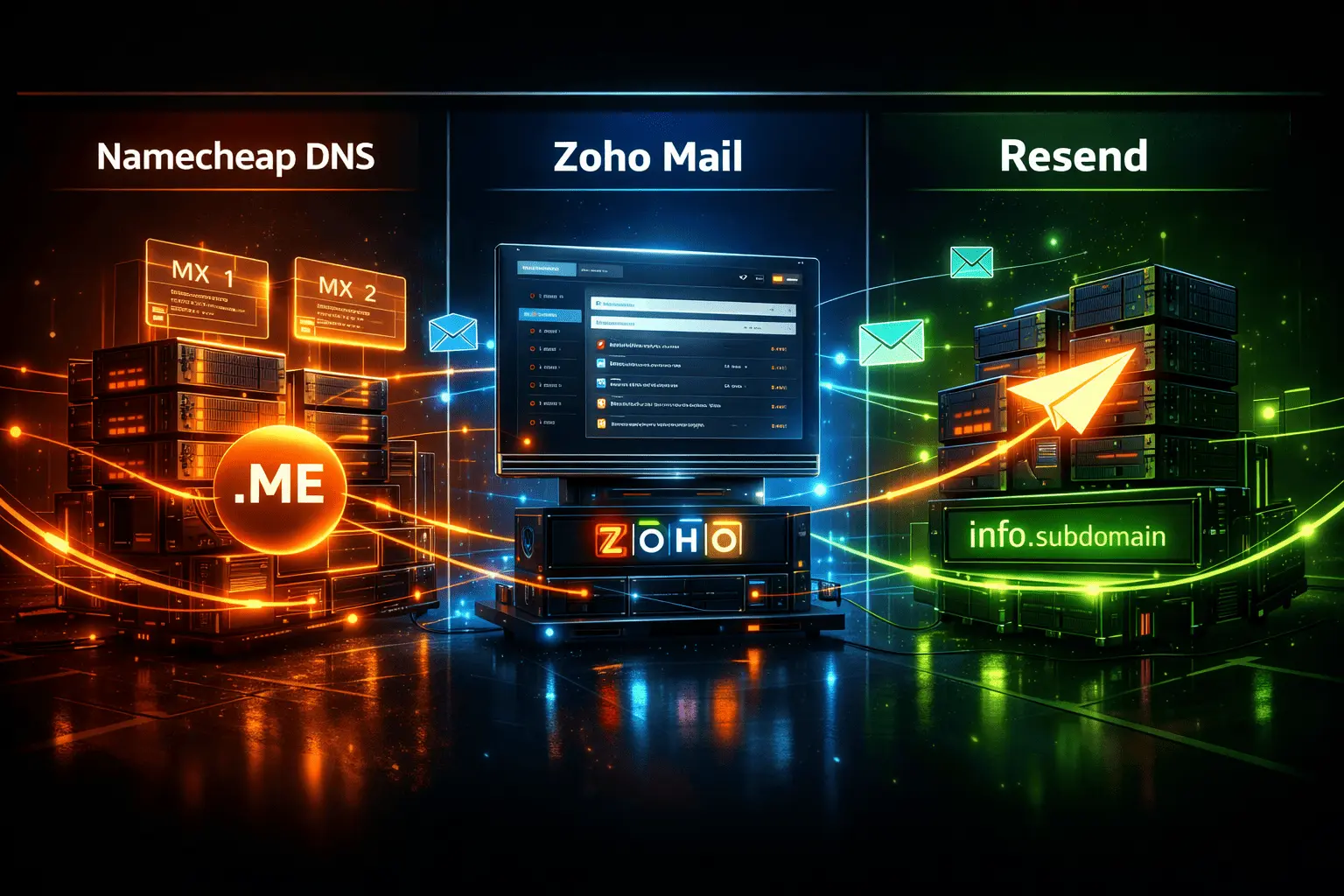
After experimenting, breaking things, Googling too much, and mildly panicking — I settled on this clean architecture:
📩 Main Inbox (receiving):  Zoho → anish7.me
📤 App Emails (sending):   Resend → info.anish7.me
🌐 DNS Manager:            Namecheap
In simple words:
- Zoho = my professional inbox
- Resend = my app emails
- Namecheap = where all the magic DNS stuff lives
No chaos. No conflict. No drama.
Just clean, smart separation.
Why I Chose Zoho for My Main Email
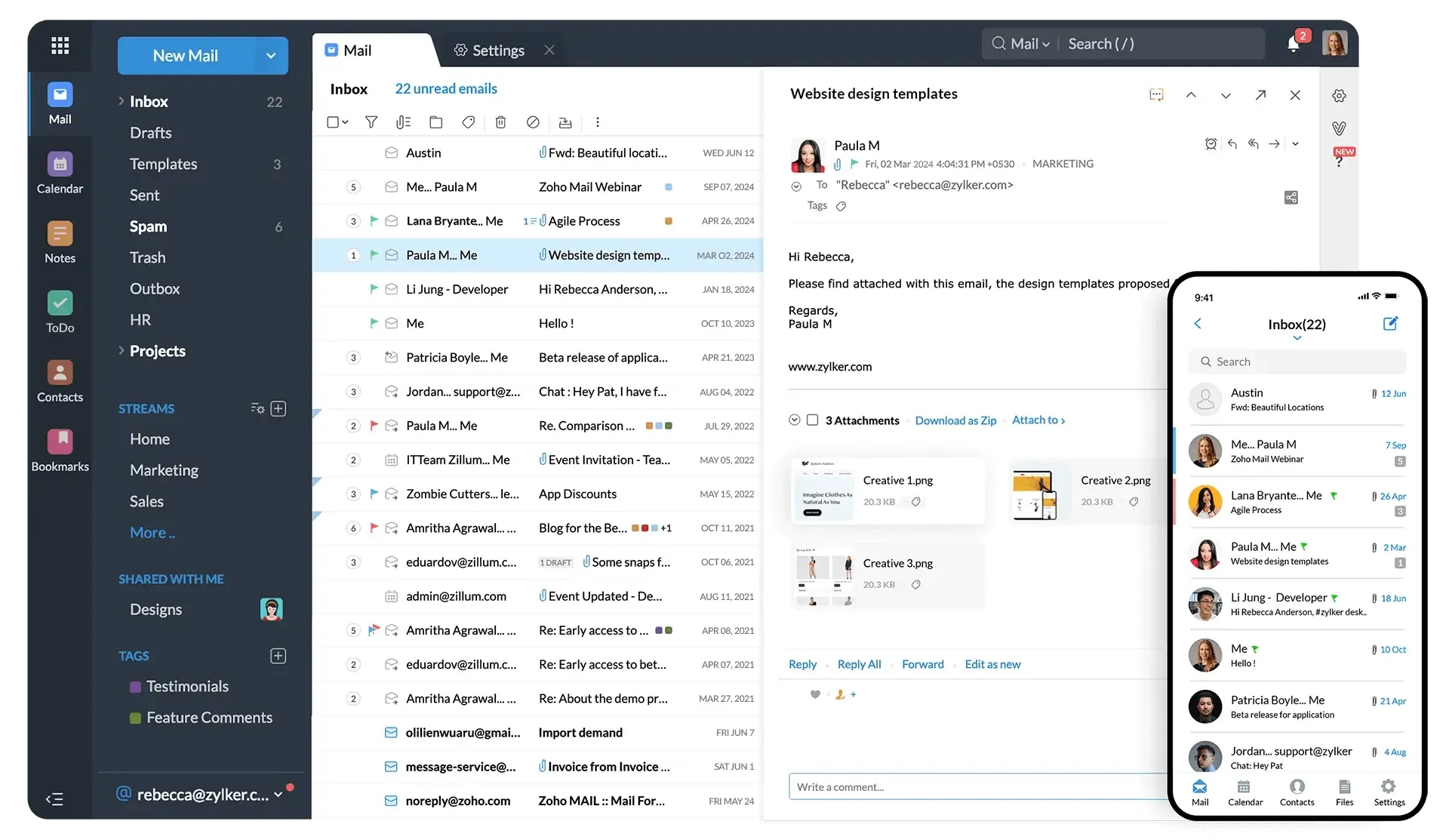
I needed a real inbox. Not forwarding tricks. Not Gmail hacks. A proper email system.
Zoho’s free plan gave me:
- Custom domain email (
@anish7.me) - Real inbox
- Spam filtering
- Calendar
- Mobile app
- No random Google “via gmail.com” nonsense
So I went into Namecheap DNS and changed my MX records to:
@ → mx.zoho.com  (10)
@ → mx2.zoho.com (20)
@ → mx3.zoho.com (50)
And I deleted these:
mx1.forwardemail.net
mx2.forwardemail.net
Why? Because only ONE service can control your incoming email.
Think of it like food delivery. You can’t have Swiggy and Zomato both trying to deliver the same order at the same time.
Zoho became my official “post office.”
Why I Used Resend for Sending Emails
Now here’s where it gets interesting.
My website sends emails like:
- Login OTP
- Password reset
- Welcome messages
- Notifications
I didn’t want these coming from my main inbox. That would be messy and weird.
So I used Resend, a developer-friendly email service.
Instead of using my main domain (anish7.me), I moved Resend to:
info.anish7.meSo now emails look like:
noreply@info.anish7.meProfessional? Yes. Clean? Yes. Smart? Absolutely.
I added two important DNS records in Namecheap:
- SPF for Resend
- DKIM for Resend
This tells email servers: “Hey, this email is legit. Don’t mark it spam.”
The SPF Lesson That Almost Broke My Brain
At one point, I had:
v=spf1 include:zoho.com ~all
v=spf1 include:resend.com ~all
And guess what? That’s WRONG.
You cannot have two SPF records. You must merge them into one like this:
v=spf1 include:zoho.com include:resend.com ~allThis single line basically says:
“Emails from this domain are allowed from Zoho AND Resend.”
Once I fixed this, everything magically started working better. No spam. No rejections. No random failures.
Yo, What is ForwardEmail.net though?
It’s basically just email forwarding. Like Namecheap’s free forwarding, but dressed up with techy branding.
Since I already had Zoho as my real inbox, ForwardEmail made zero sense for me.
So I deleted those records and moved on with my life.

Testing Everything (The Moment of Truth)
After setting everything up, I tested:
- Sent an email from Resend → landed in Zoho ✅
- Checked spam folder → clean ✅
- Looked at email headers → no “via gmail.com” crap ✅
At that moment, I felt like a mini DevOps engineer.
Who Should Use This Setup?
If you are:
- A developer
- A freelancer
- A student with a personal brand
- A startup founder
- Or just someone who owns a domain
This setup is perfect for you.
It’s:
- Free (mostly)
- Clean
- Professional
- Scalable
- Not overcomplicated
You get the best of both worlds.
Final Thoughts
Your domain is your identity on the internet.
Your website is your face. Your email is your voice.
If your website looks premium but your email is still lmaobrooo@gmail.com, you’re doing yourself dirty.
Setting this up once saves you embarrassment, spam problems, and future headaches.
And now? When someone asks me my email, I proudly say:
“It’s hello@anish7.me.”
That hits different.